Power Fields: User guide
Power fields allow you to filter on data from related apps. This is a powerful feature with lots of use cases. We will use an example to explain you how game-changing power fields can be.
Every expense is linked to a project. You would like to filter in the Expenses app on all expenses that are linked to a project with status 'Approved'. To achieve this, we will fetch the project status and copy it to the Expenses app.
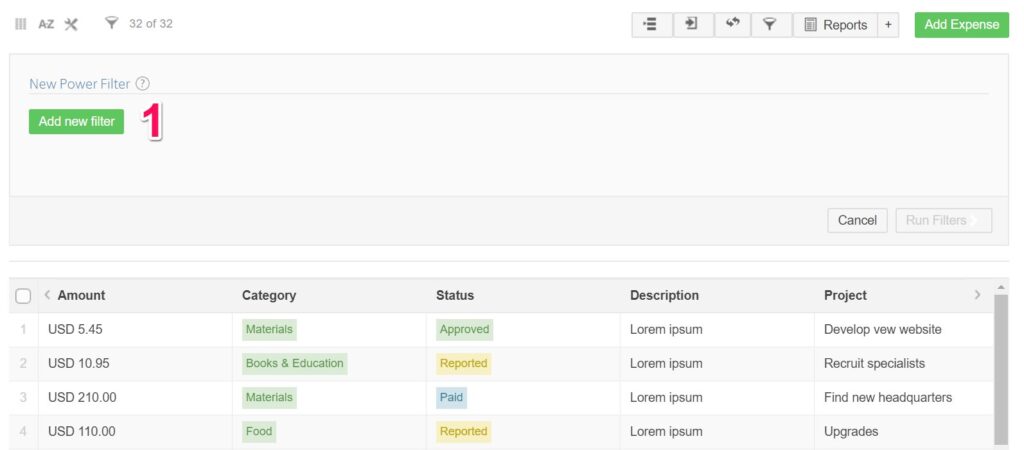
1. Create a new filter
Open on the toolbox and click on Add new field to get started.
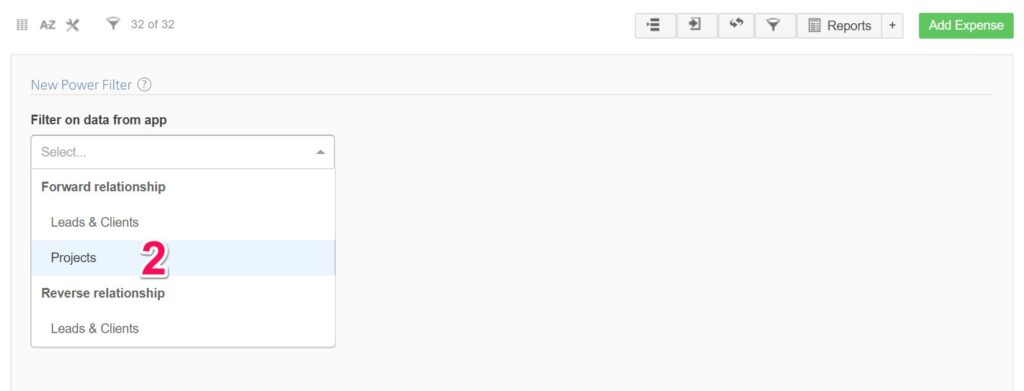
2. Select the related app
In the next step you can select from which related app you want to copy information from. In this case you want to copy information from the Projects app. You can select both forward and reversed related apps.
It is not possible to use power fields if the target app has no forward or reversed related apps.
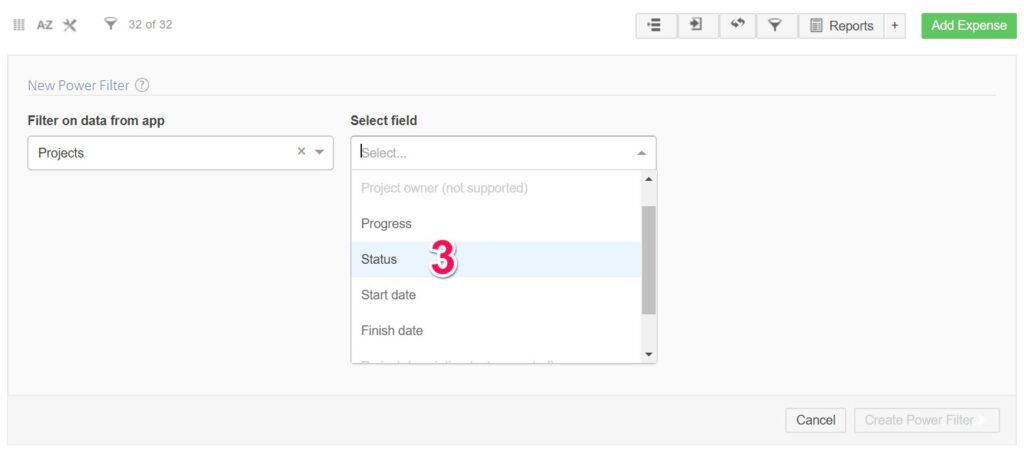
3. Choose the field
Select the field that you want to copy to your app. Here is an overview of the field types that we support and how calculate the value of the target field:
- Category: All category values of the referenced items will be pulled to the target app.
- Date: The earliest date of the referenced items will be set as date.
- Relationship: All of the referenced items of the referenced items will be pulled to the target app. Please note that the order might be different.
- Number: The number values of the referenced items will be added up.
- Money: The money values of the referenced items will be added up.
- Progress: The average of the progress values of the referenced will be shown in the target field.
- Duration: The The duration of the referenced items will be added up.
There are a few technical limitations for Power Filters: a) A target number filters can have a maximum of 2 decimals (so numbers with 3 or 4 decimals will be rounded to 2). b) It is not possible to sum numbers or currency values that are lower than -21.474.836 or higher than 21.474.836. c) The money values need to be in the same currency.
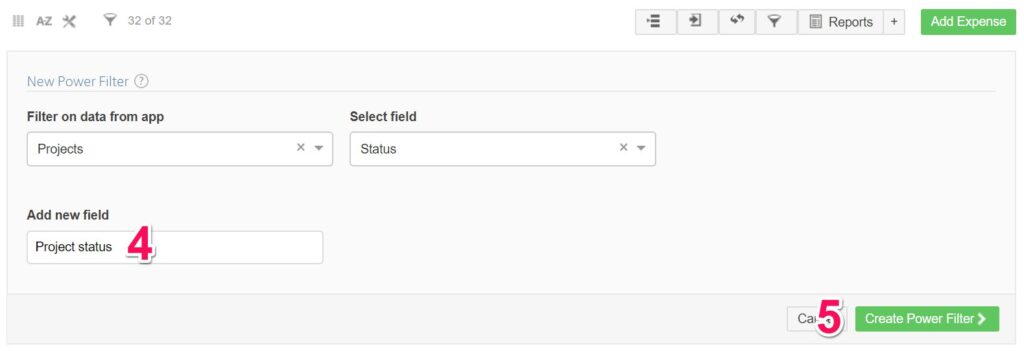
4. Enter field name
To copy the field values from the Projects app, we need to add a new field in the Expenses app. You can enter a name for this new field.
5. Start syncing field values
Click on Add new field to copy the values from the Projects app to the Expenses app. A progress bar will be shown on the right.
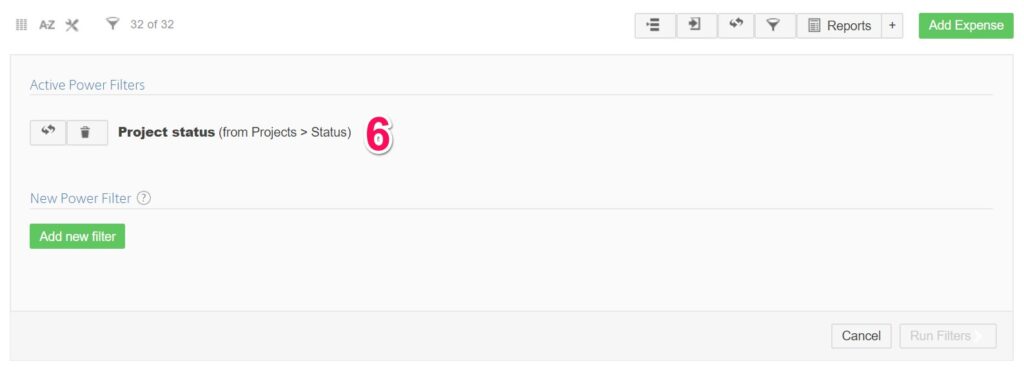
6. Active Power fields
Once the Power fields is created, you will see the active power fields when you open the power filter toolbox. The Power Field will automatically sync the values from the related apps every 2 hours to your target app. If you want to be sure that all data is up-to-date you can manually trigger the power field by clicking the recycle icon next to the Power field.